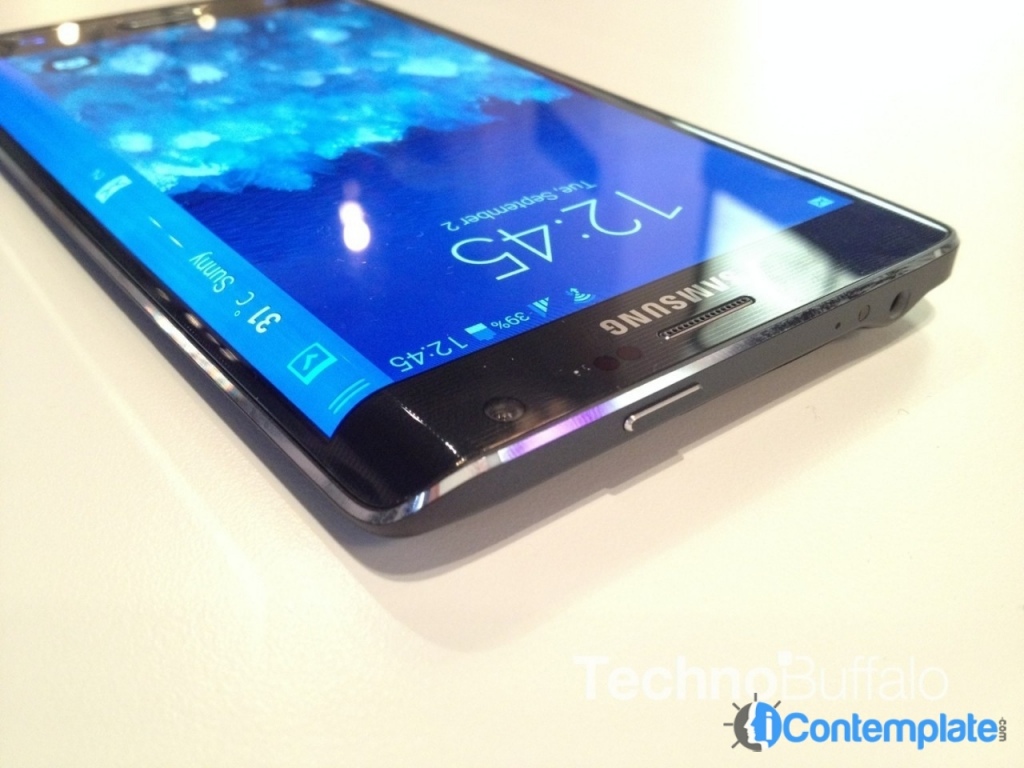

<p style="text-align: justify;">Samsung Galaxy Note Edge 2 is the most awaiting device after the Samsung Galaxy Note 5 because of its expected specifications and special display. And there would not be the hardware changes at the Samsung Galaxy Note Edge 2, but also you could expect something revolutionary at the end of software.</p>
<p style="text-align: justify;">The present Note Edge, by default display on a single screen all settings organized by sections, but it is possible to activate a tab view. One of the innovations that came with the previous Galaxy was My Magazine, a new screen that Samsung showed Flipboard content organized by user-selectable themes. The Galaxy Note Edge The Magazine My system has been replaced directly by Flipboard Briefing, although the differences are small. On the home page you can see above the highlighted item from each category and, if we fall, we can see all the news from each category. Available categories are News, Business, Technology, Sports, Celebrities, Science, Entertainment, Fashion, Food, and Travel. The lock screen of Galaxy Note Edge shows the time and date and, optionally, can also be made ​​showing the owner&#8217;s name, weather information and the number of steps that have come under the integrated pedometer. Nice innovation, and it would also appear in the Samsung Galaxy Note Edge 2.</p>
<p style="text-align: justify;">In the new interface, from the lock screen you can quickly access the camera application through a shortcut on the bottom right of the screen. But in the previous Note, the implementation of this shortcut to the camera is not too good and sometimes we think we have activated when in fact we have not dragged the icon enough. Even, the Samsung Galaxy Note 4 introduces the function Multi Window to run windows applications, enabling better use of large-screen Galaxy Note 4. And it was found in Note Edge too. All that is necessary to make an application that runs full screen pass in a window is to drag your finger diagonally from the upper left corner to the opposite corner. If you click on the dot at the top of the window can access a menu that allows us to minimize the window in a bubble on the screen. When the window is minimized in a bubble, we can freely move around the screen. Unfortunately not all applications can run in a floating window, but we can only do so with Samsung apps that come pre-installed on the phone and some others as Facebook, WhatsApp, etc. As in other devices Galaxy Note, we can split the screen in two and run two applications simultaneously, side-by-side, pressing the Recent Tasks and clicking on an icon split screen including supported applications. This would also be accessible in the Samsung Galaxy Note Edge 2.</p>

Samsung Galaxy Note Edge 2: Next Change In Technology