
<p style="text-align: justify;">When you start looking into creating a video you’re bound to realize that it isn’t just as simple as recording the video footage that you need. Instead there are multiple different areas that you need to take care of before and after that, from planning to scripting and subsequently, editing, enhancing, correcting and optimizing your video.</p>
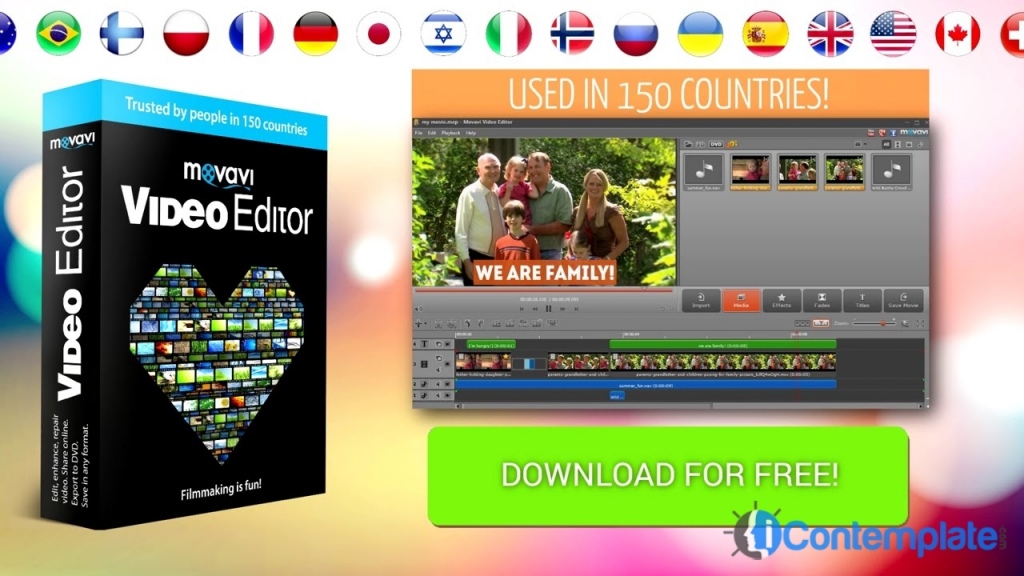
<p style="text-align: justify;">The Movavi Video Suite is a software that aims to take care of every aspect of your video creation and will help you to record, edit, enhance, correct and optimize your video. In other words the only part that it won’t be involved in is the planning, but even that will be that much easier knowing that you have software capable of handling all the other aspects.</p>
<p style="text-align: justify;">The areas that the Movavi Video Suite will help you out with are:</p>
<ul style="text-align: justify;">
<li><strong>Obtaining video by recording or other means</strong></li>
</ul>
<p style="text-align: justify;">With the Movavi Video Suite you’ll be able to choose whether you want to use an existing pre-recording video, or record your own footage either directly from your screen using screen capture or from your webcam. On top of that you can also opt to digitize analog video from VHS or TV tuners if you want to.</p>
<ul style="text-align: justify;">
<li><strong>Editing and organizing the video</strong></li>
</ul>
<p style="text-align: justify;">Once you have your videos, you can edit and organize them by taking advantage of the software’s features to cut, trim and combine video segments. At this point you can get rid of unnecessary footage or edit the sequence in which scenes appear. If you like you can even combine segments from multiple different videos into a single video.</p>
<ul style="text-align: justify;">
<li><strong>Enhancing the video and fixing problems with the footage</strong></li>
</ul>
<p style="text-align: justify;">Assuming you’re not satisfied with the video quality or there are issues with the footage such as portions that are pixelated, shaky, blurry or interlaced – you can use the tools available to enhance and correct those issues. More specifically you could also adjust the color settings to get your video to look just right.</p>
<ul style="text-align: justify;">
<li><strong>Inserting special effects, filters, and other final touches</strong></li>
</ul>
<p style="text-align: justify;">Last but certainly not least you can add special effects and filters to alter your video’s visual appearance. At the same time you could add background music voiceovers, subtitles, watermarks, or captions.</p>
<p style="text-align: justify;">Starting to get an idea just how many options the Movavi Video Suite provides for? Long story short if you’re making videos with this software you’ll have all the tools you need – and the best part is that they’re so intuitive and straightforward that you’ll be able to master them in no time.</p>

Movavi Video Suite Review